
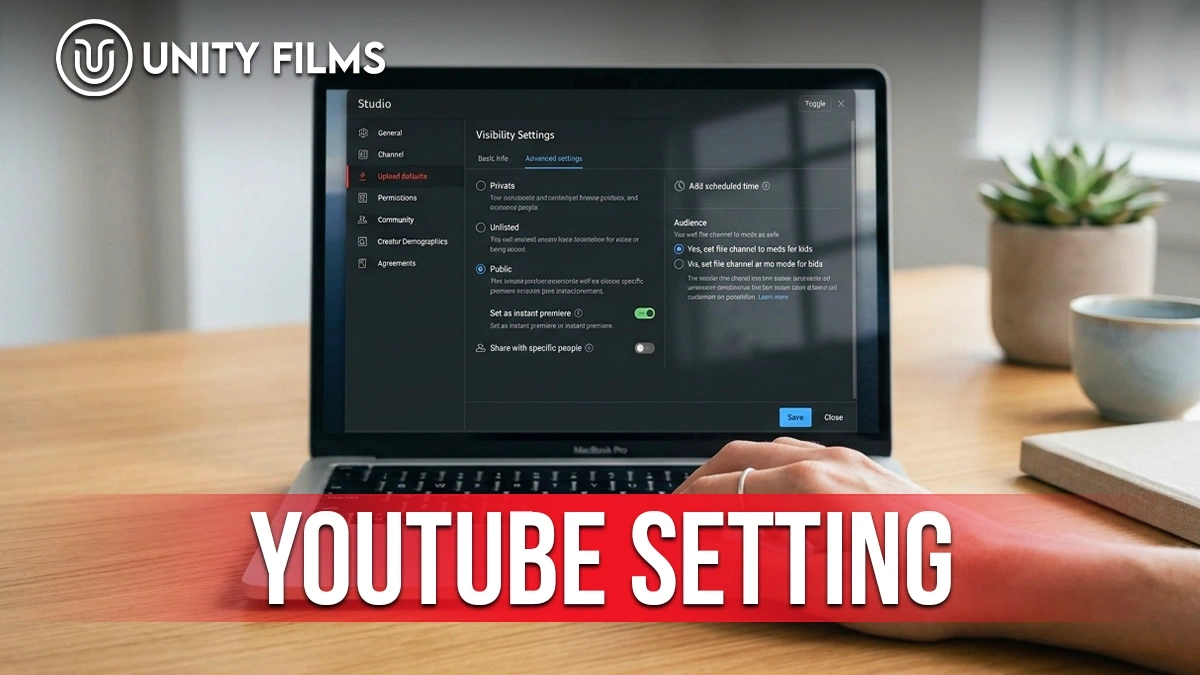
Your channel has good content. Your uploads are consistent. But growth is flat and you cannot figure out why.
You have watched every setup tutorial. Twenty settings adjusted. Nothing changed.
Here is what nobody tells you. Most YouTube settings are noise. Only 8 of them actually move the algorithm. The rest are cosmetic toggles that make you feel productive without changing anything that matters. Working through the right YouTube settings, in the right order, is what separates channels that grow from channels that stall.
According to YouTube’s official Creator Academy, the algorithm rewards a specific set of channel signals. Get those 8 settings right and your videos start getting pushed. Get them wrong and even great content dies in the browse feed. Google’s own research on Think with Google confirms that channels signaling clear niche identity and audience targeting outperform generic channels by wide margins.
This playbook walks you through exactly which channel settings drive growth in 2026, which ones do not matter, the common mistakes that kill channels, and how to configure everything so your next upload actually has a chance.
Why Channel Configuration Actually Matters for the Algorithm
Every setting inside YouTube Studio sends a signal to the algorithm. Some signals are strong. Most get ignored. The 2026 algorithm cares about three things above everything else: audience match, content relevance, and creator intent.
Your settings tell YouTube whether you are a professional creator or a casual uploader. They tell YouTube which niche you belong to. They tell YouTube which audience to test your videos on. Get these signals wrong and your video shows up in the wrong feeds, gets skipped by unmatched viewers, and dies in 24 hours.
Research shared by industry tools like Utubeo suggests that around 73 percent of creators never configure more than 4 of the 15 critical settings. That is why so many channels stay stuck under 1,000 subscribers despite months of uploads.
The 8 YouTube Settings That Actually Impact Growth
Work through these in order. The rest of the toggles inside YouTube Studio matter far less.
1. Channel Country. Located in Settings → Channel → Basic Info. Your country tells YouTube which regional feed to test your videos on first. Wrong country here and your videos get shown to viewers in the wrong market.
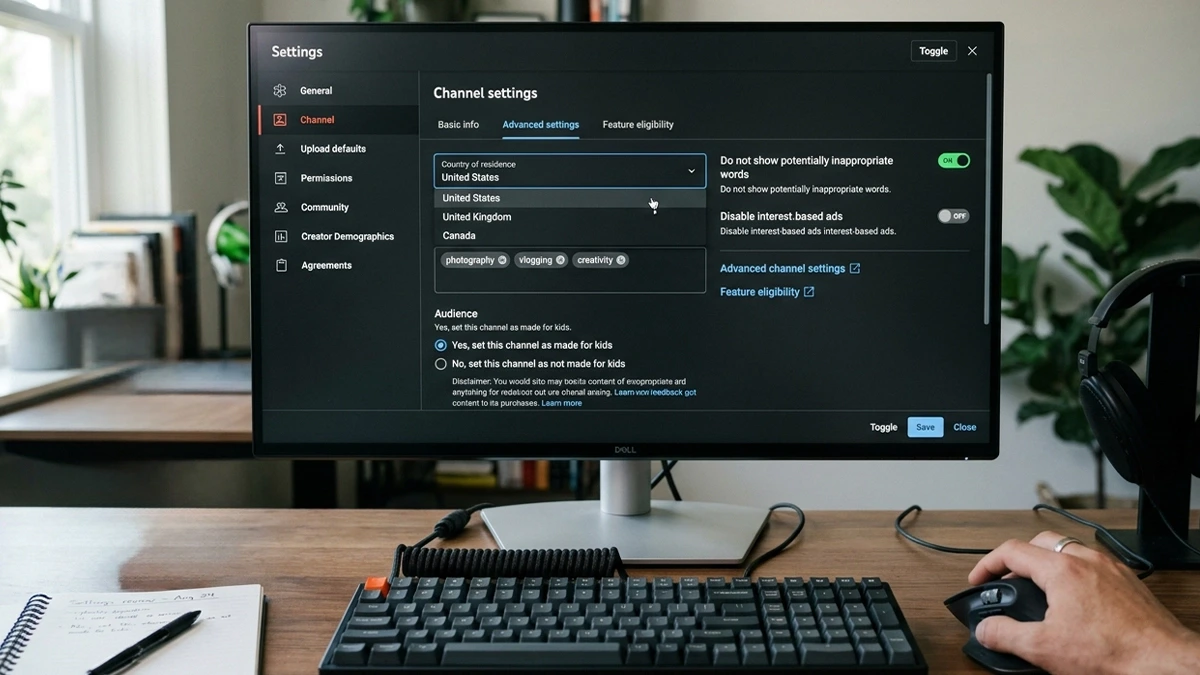
2. Language. Same section. Set the primary language your content is in, not the language of your interface. YouTube uses this for closed-caption defaults, language-based recommendation feeds, and audience matching.
3. Channel Keywords. Located in Settings → Channel → Basic Info → Keywords. Add 4 to 8 primary keywords that describe your content. Not 50. Not one. Focused topical signals help the algorithm categorize your channel.
4. Made for Kids (Audience Setting). Located in Settings → Channel → Advanced Settings. This is a global default that also applies per video. Setting your channel to “Not Made for Kids” unlocks personalized ads, community posts, comments, and higher-monetization ad categories. Only enable “Made for Kids” if your content is genuinely for under-13 viewers.
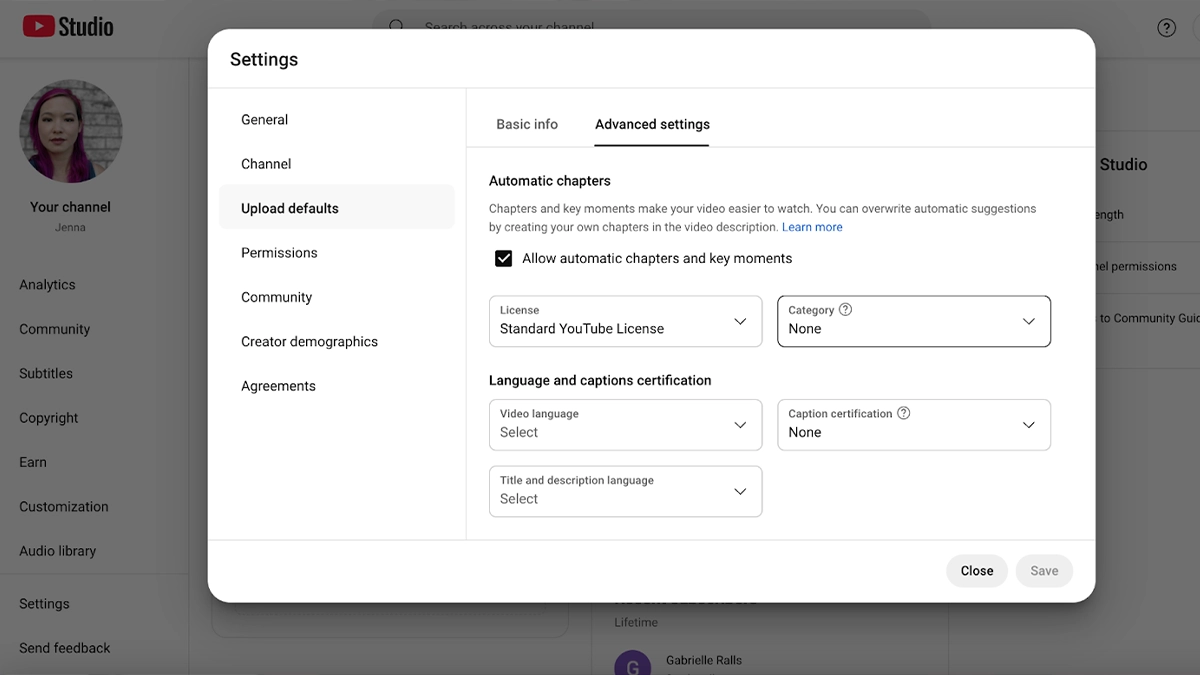
5. Upload Defaults. Located in Settings → Upload defaults. Pre-set your standard tags, category, language, comments, and monetization settings so every upload starts with your proven configuration. Saves 5 minutes per upload and prevents the “I forgot to update the tags” problem.
6. Advanced Comment Filters. Located in YouTube Studio → Settings → Community → Automated Filters. Block spam patterns, hold potentially inappropriate comments for review, and add blocked words. Comment engagement is an algorithm signal, but only real comments count. Spam kills your average.
7. Monetization Preferences. Located in Monetization → Ad Formats. Choose which ad types to run. Skippable, non-skippable, mid-roll, bumper, overlay. Longer videos benefit from mid-roll enabled. Shorter videos need overlay and skippable only. Wrong choices here cut RPM significantly.
8. Analytics Sharing. Located in Settings → Channel → Advanced Settings. Enable sharing your channel analytics with third-party tools like VidIQ or TubeBuddy. This does not affect ranking directly but unlocks growth intelligence you cannot see inside YouTube Studio alone.
Critical Audience Settings Most Creators Get Wrong
These three settings kill more channels than any content mistake.
Wrong Country selection. A US-based creator setting country to Pakistan or India (where their family is) trains the algorithm to test videos in the wrong market. Your CTR looks fine in the wrong region but stays flat globally. Fix it in Settings → Channel → Basic Info.
Wrong Language default. Uploading English content but setting language to Urdu, Spanish, or Hindi confuses YouTube. Videos get closed captions in the wrong language, get recommended to non-English viewers, and CTR drops. Match your language field to your actual voiceover or spoken language.
Wrong Made for Kids toggle. Some creators toggle “Made for Kids” thinking it means “family-friendly.” It does not. It disables comments, personalized ads, and community features. Only enable it if your videos are genuinely for under-13 viewers. Family vlogs, gaming, and lifestyle content should be “Not Made for Kids.”
YouTube Studio Analytics Settings for Data-Driven Growth
YouTube Studio is where you actually manage growth after channel settings are configured. Three configurations matter here.
Custom dashboard. Right-click any metric card and pin it to your dashboard. Pin Impressions, CTR, Average View Duration, and Traffic Source Breakdown. These four metrics tell you 90 percent of what you need to know.
Real-time analytics. Located in Studio → Analytics → Realtime. Watch new upload performance in the first 60 minutes. YouTube’s algorithm decides distribution based on early signals. Real-time data lets you catch a dying upload early and adjust title or thumbnail.
Compare feature. Turn on comparison in Studio → Analytics. Compare last 28 days to previous 28 days. This reveals whether your content strategy is compounding or flatlining.
Mobile Configuration for Creators in 2026
If you manage your channel from your phone, most settings are available in the YouTube Studio app. But three critical ones are desktop-only in 2026.
Available on mobile: Basic channel info, video upload defaults, monetization dashboard, analytics, community tab management, comment moderation.
Desktop-only in 2026: Advanced channel settings (Made for Kids default), channel keywords editor, upload permissions for teams, analytics comparison view, custom dashboard configuration.
For serious growth, do initial setup on desktop. Use mobile for daily uploads and quick analytics checks. The YouTube Studio app has improved significantly but still lacks the depth needed for full channel management.
AI Features in YouTube Studio 2026: What to Enable and Disable
YouTube rolled out several AI features in late 2025 and 2026. Most creators leave defaults on. Not all defaults are good for you.
Enable these AI features:
- AI-suggested titles. YouTube analyzes your thumbnail and video and suggests title variations. Not always right, but useful as a starting point.
- Smart chapter generation. For videos over 10 minutes, this improves watch time and viewer navigation.
- Automatic subtitle generation. Increases accessibility and reach into markets that watch with captions on.
Disable these AI features unless you review carefully:
- AI training on your content. Located in Settings → Advanced. If you want to retain full control over how your content is used to train future AI models, disable this. It does not affect your channel’s growth.
- Automatic comment translation. Sometimes translates innocent comments into meanings you did not intend, causing confusion.
- AI-generated video summaries in descriptions. These often miss the actual value of your video. Write your own descriptions.
Faceless Channel and Shorts-Specific Settings
Faceless channels and Shorts-focused creators need different setting configurations than face-visible long-form channels.
For faceless channels:
- Set channel keywords focused on your specific niche (motivation, top 10, tech reviews, sleep audio, etc.), not generic.
- Use branded default upload thumbnails that maintain visual consistency across every upload.
- Enable Shorts remix protections if you produce original stock content others might reuse.
- Configure monetization for maximum long-form RPM if you also publish long-form.
For Shorts creators:
- Set your default upload category strategically. Some categories have lower Shorts CPM than others.
- Turn on “Notify subscribers” for new uploads. Shorts benefit from early subscriber views.
- Configure Community Guidelines strike acknowledgments so any warning shows immediately, not delayed.
- Match your language field precisely. Shorts algorithm relies heavily on language signals to route videos into feeds.
6 Common YouTube Settings Mistakes That Kill Channel Growth
These are the mistakes we see in almost every channel audit.
- Leaving default upload settings blank. Every upload becomes a manual configuration. Slow, error-prone, and inconsistent.
- Setting country based on physical location instead of target audience. Fix this if you moved cities.
- Ignoring the comment filter setup. Spam kills your comment engagement metric.
- Never updating channel keywords after a niche pivot. Old keywords keep pulling wrong audience.
- Leaving Made for Kids on by accident. Kills community features and personalized ads.
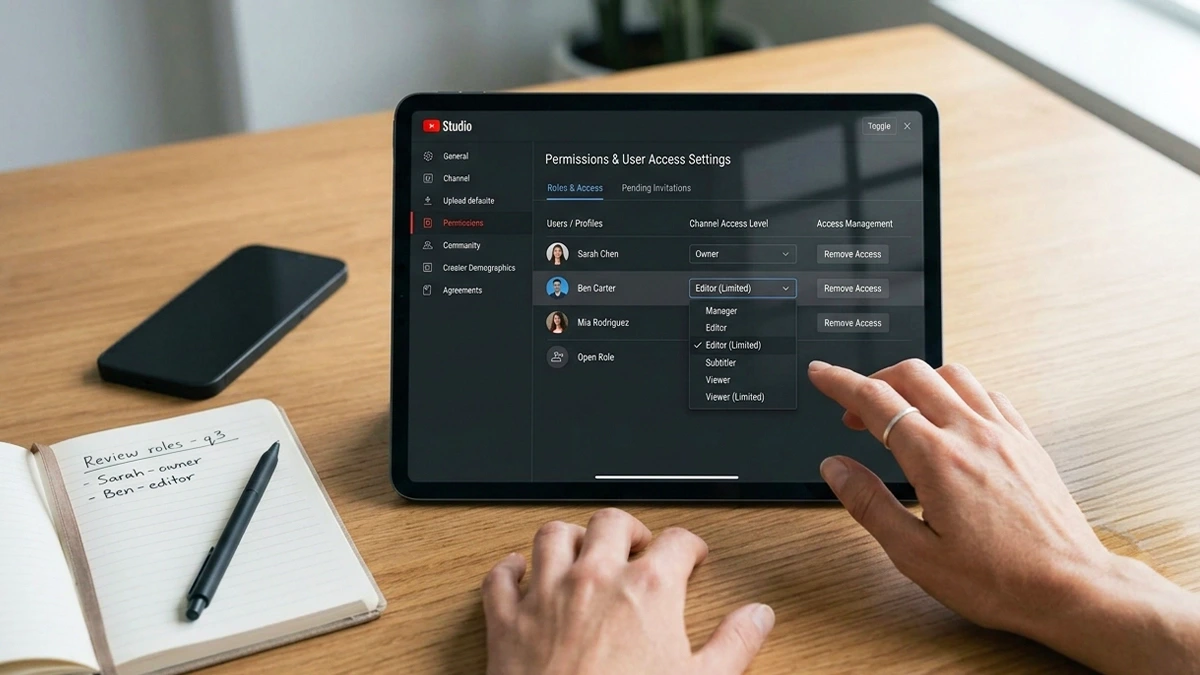
- Skipping team permissions entirely. If you have an editor or manager, they need proper access. Sharing your main Google login is a security disaster.

Managing user roles and access permissions for a YouTube channel team.
Real Case Study: What Fixing Configuration Actually Does
A US-based tech review channel came to us with 8,400 subscribers and flat monthly views around 45,000. Their content quality was strong. But their settings told a different story.
We ran a full channel audit. Country was set to their family’s country of origin, not the US market. Language was English. But their default captions were configured for Spanish. Channel keywords included 47 items with generic terms like “tech” and “video.” Made for Kids was accidentally enabled channel-wide.
We fixed all four settings and rebuilt their upload defaults, custom dashboard, and analytics comparison. Result after 90 days: monthly views jumped from 45,000 to 128,000. Impressions doubled. CTR improved from 3.4 percent to 6.1 percent. No content changes. Just the settings.
How Unity Films Handles Channel Configuration for Managed Accounts
Unity Films runs a specialized YouTube management team as part of our YouTube channel management service. We handle channel settings audits, initial setup, and ongoing optimization for creators serious about growth.
Our approach differs in three ways.
- Every managed channel gets a settings audit before content strategy discussions. No point publishing content if the algorithm is being told wrong signals.
- Quarterly settings review. YouTube updates settings and defaults every few months. We keep every managed channel current.
- Team permissions and workflow setup. We configure editor access, manager permissions, and upload defaults so your workflow scales without security compromises.
We work with global creators from a Pakistan-based team. Fluent English, US-timezone coverage, and cost-effective monthly management. For creators publishing weekly or more, this delivers the best value in the market.
If your YouTube channel has good content but flat growth, the problem is often settings, not creativity. Reach out to Unity Films with your channel URL for a free settings audit and see what is being misconfigured.
For creators also thinking about hooks and retention, our YouTube script writer guide covers how scripts and settings work together to drive channel growth.
FAQs
How often should I review my YouTube settings?
Full review every 3 months. YouTube updates settings, adds new features, and deprecates old ones regularly. A quarterly review catches new opportunities and prevents outdated configurations from hurting growth.
Do YouTube settings really impact the algorithm as much as content?
For a new channel with strong content, YouTube settings can accelerate growth by 2 to 3 months. For established channels, wrong settings can cap growth entirely. Content wins long-term, but settings decide whether your content ever gets tested.
Can I recover from a Made for Kids mistake?
Yes, but the recovery is slow. Once you toggle Made for Kids off, your videos regain personalized ads and community features. But subscribers gained during Made for Kids may need to be re-engaged. Expect 4 to 6 weeks for engagement metrics to normalize.
Should I use third-party tools like VidIQ or TubeBuddy?
For growth-focused creators, yes. These tools surface data YouTube Studio hides. They also automate keyword research and A/B testing that would otherwise take hours per week. Free tiers work for small channels. Paid tiers pay for themselves once you cross 5,000 subscribers.
Final Thoughts
Most tutorials treat every toggle as equally important. They are not. Focus on the 8 that move the algorithm. Fix the audience configurations that kill growth. Set up Studio for data-driven decisions. Ignore the rest.
Ready to have your channel audited by a team that manages accounts for global creators? Talk to Unity Films about a free review built for creators serious about growth.